Natural Language Queries Against Entra ID — No Extra License Required
Step by step setup for Claude integration with Microsoft MCP Server For Enterprise

Thanks for stopping by — enjoy the read :-)
… und klicke hier, wenn Du lieber in Deutsch lesen möchtest
English version
When I published this article in May 2026, the integration required a client secret. This is no longer necessary.
I've since successfully tested the integration using a public client with Authorization Code Flow and PKCE, without a client secret.
I'll explain the updated configuration in a separate blog post. The original article remains unchanged to document the setup at the time.
General
AI in Entra ID is everywhere right now, Security Copilot, the CA Policy Optimization Agent, the Access Review Agent. The list keeps growing. But the cost debate around SKU-based AI remains a real topic.
A while back, I decided to take a closer look at the Microsoft MCP Server for Enterprise and how I could connect my everyday AI client to it in order to query my tenant in natural language. My initial verdict: absolutely amazing! I have no other words on this. Both in terms of how straightforward the setup is, and the quality of the results.
Take a look at this output. Not bad, right?
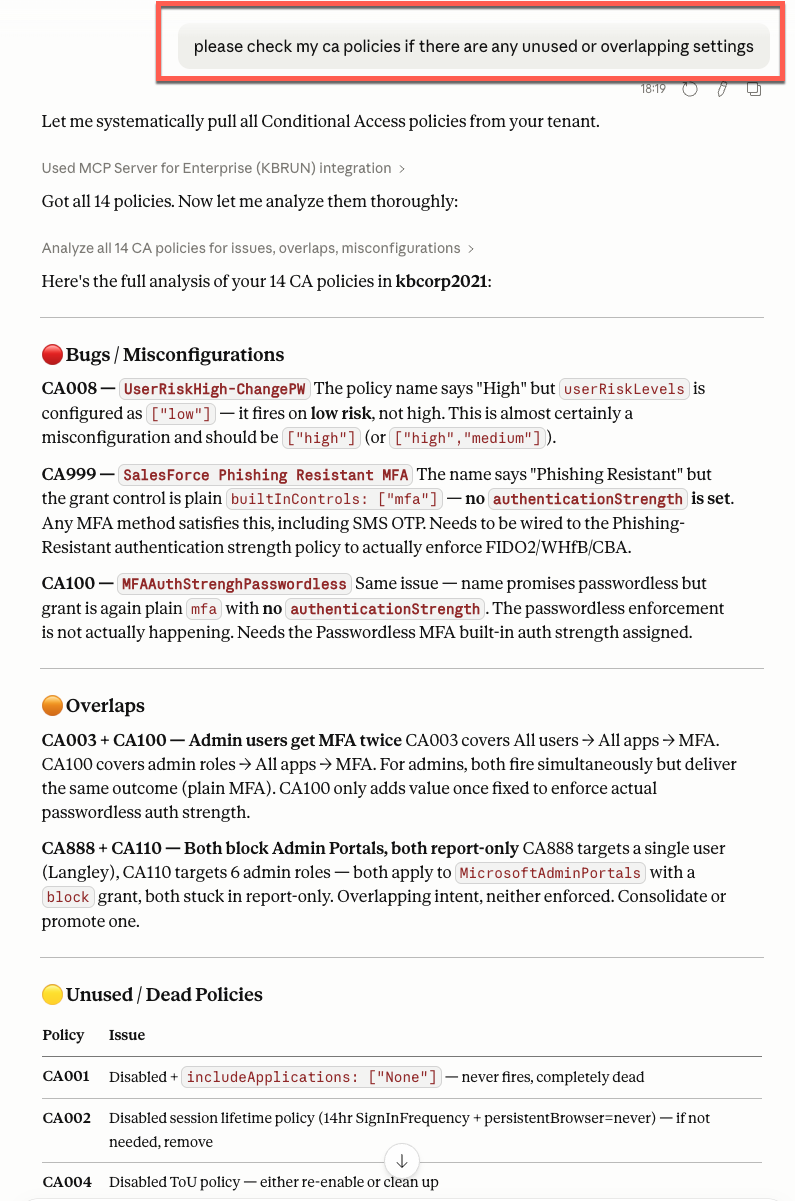
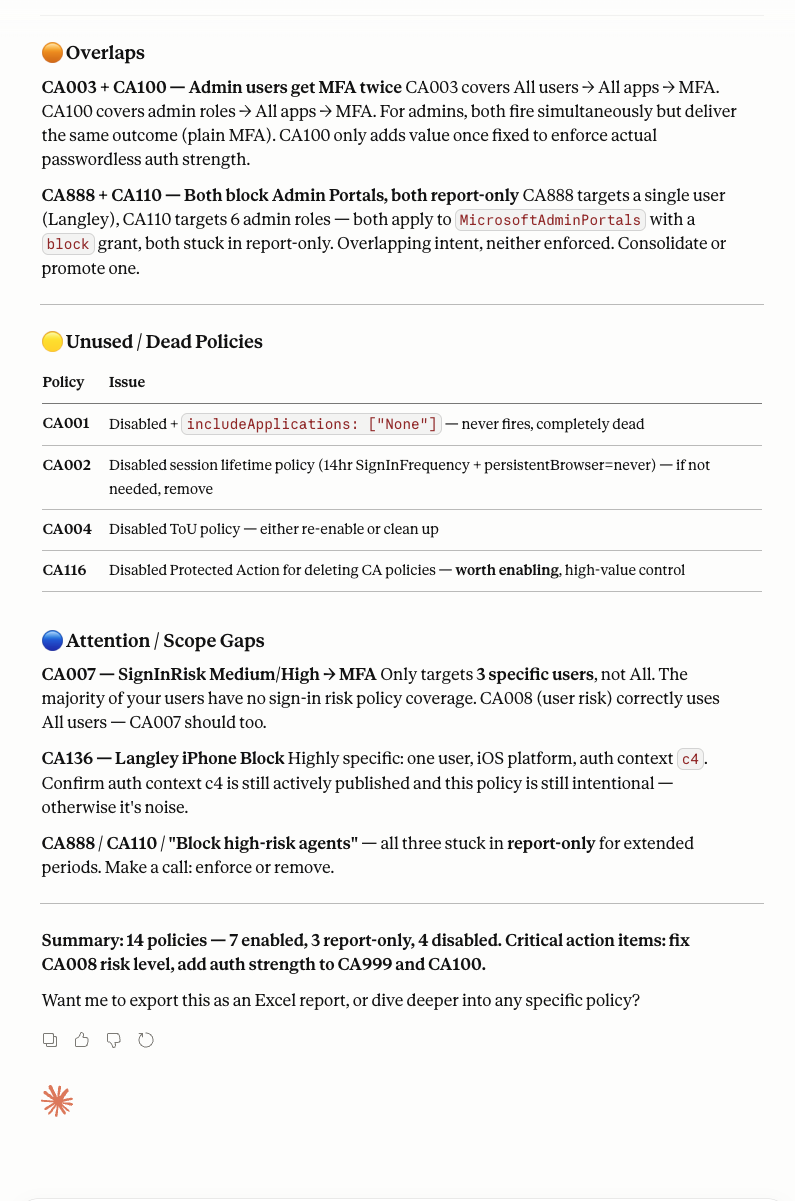
Picture above: Result of a CA Policy health query
Get started
Since there are various resources covering the setup of Claude with the MCP Server for Enterprise, I decided to document my setup here, exactly as it worked in my lab.
This is the first blog article of two parts and this one is focusing on the Claude integration with Entra ID. Limitations and challenges are covered further below. In the second part, I’ll walk through the Copilot implementation as an AI client within the Microsoft ecosystem, along with my impressions and experience.
Before we dive in, a few things worth knowing upfront:
- The MCP Server communicates via the Microsoft Graph API, which generally also supports write operations.
- However, the current version of the MCP Server supports read operations only, which is perfectly sufficient for analysis scenarios.
- The MCP Server for Enterprise is currently in Public Preview.
- No additional license costs apply.
- This setup works well for lab use. For a team of multiple administrators, things get more complex: each admin needs the secret for their own configuration e.g.
For now, let’s stick with Claude. The diagram below shows the components we’ll be working with throughout this article.
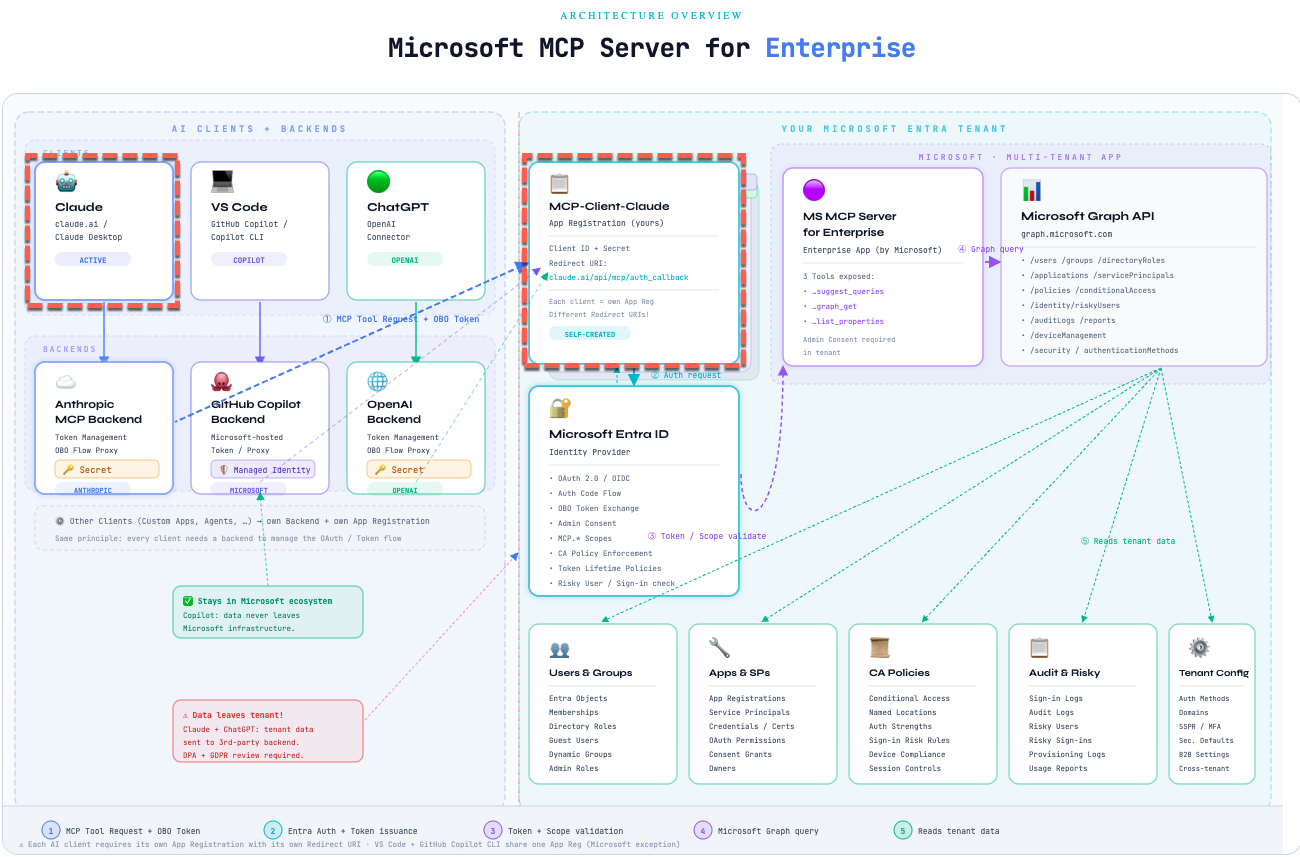
The diagram below walks through each step, from entering the prompt to receiving a response in natural language:
The user formulates a prompt, for example: “List all users with a last login more than 90 days ago”
Claude identifies the intent and forwards the request via the Anthropic backend to the MCP Server for Enterprise.
Authentication is handled through the App Registration in Entra ID.
Entra ID verifies identity and permissions, just as they would if you were calling the Graph API directly.
The MCP Server translates the request into the appropriate Microsoft Graph API call, retrieves the data from your tenant, and returns it to Claude.
Claude responds! Not with raw JSON, but in plain, readable language, directly in the chat.
⚠️ Data Privacy
When using Claude as an MCP client, tenant data leaves the Microsoft infrastructure and is processed via the Anthropic backend. Before moving to production, verify that this is compatible with your organization’s data privacy policies, regardless of which regulatory framework applies to your organization. The same applies to any external AI client. For scenarios where tenant data must not leave the Microsoft infrastructure, Microsoft-native components such as Copilot may be a viable option — we’ll explore that in Part II of the series.
Setting Up the App Registration
If the MCP Server for Enterprise does not yet exist in your tenant, it needs to be set up first. There are several ways to do this, for example, via PowerShell:
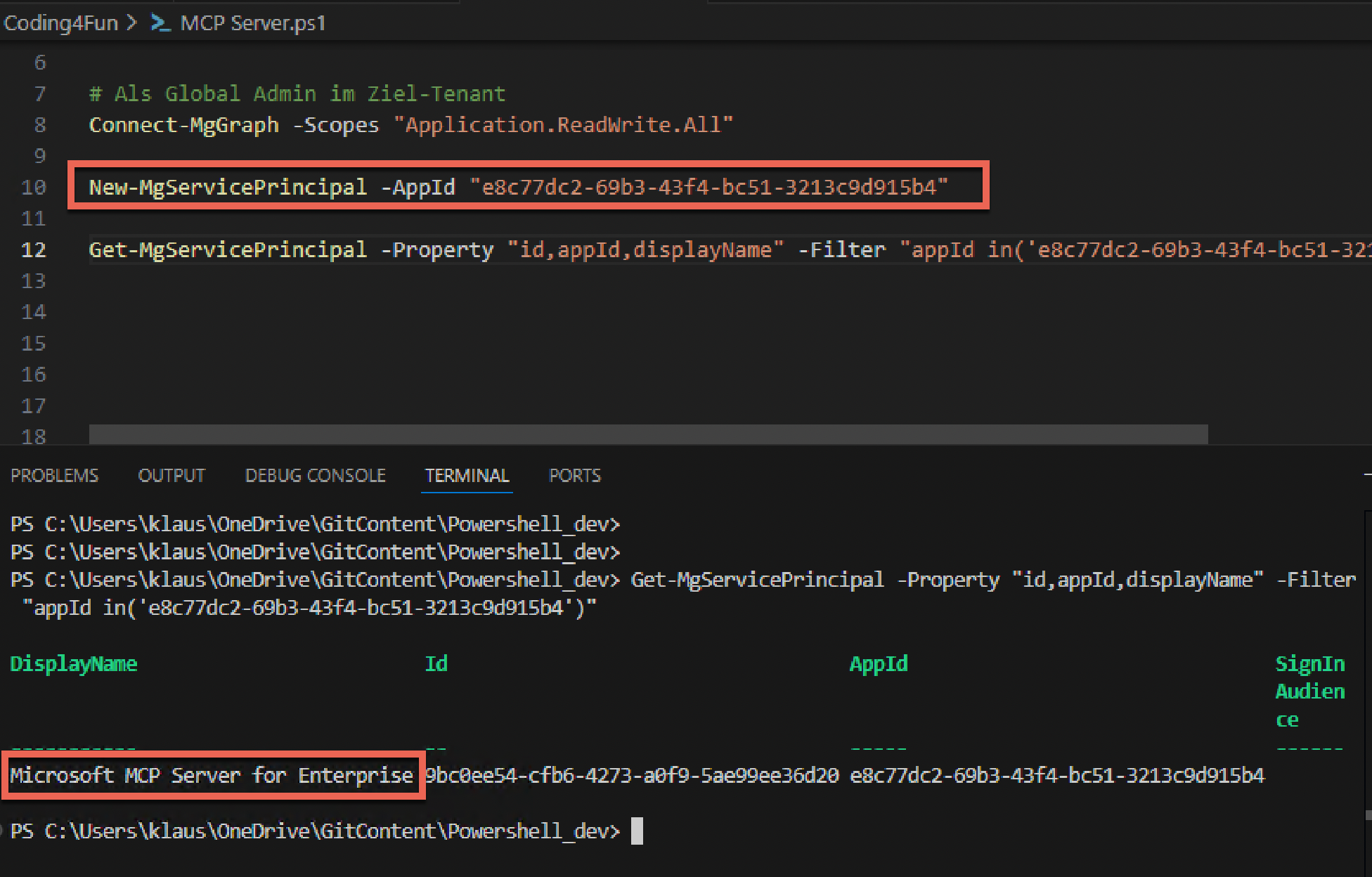
… or directly with the Graph Explorer
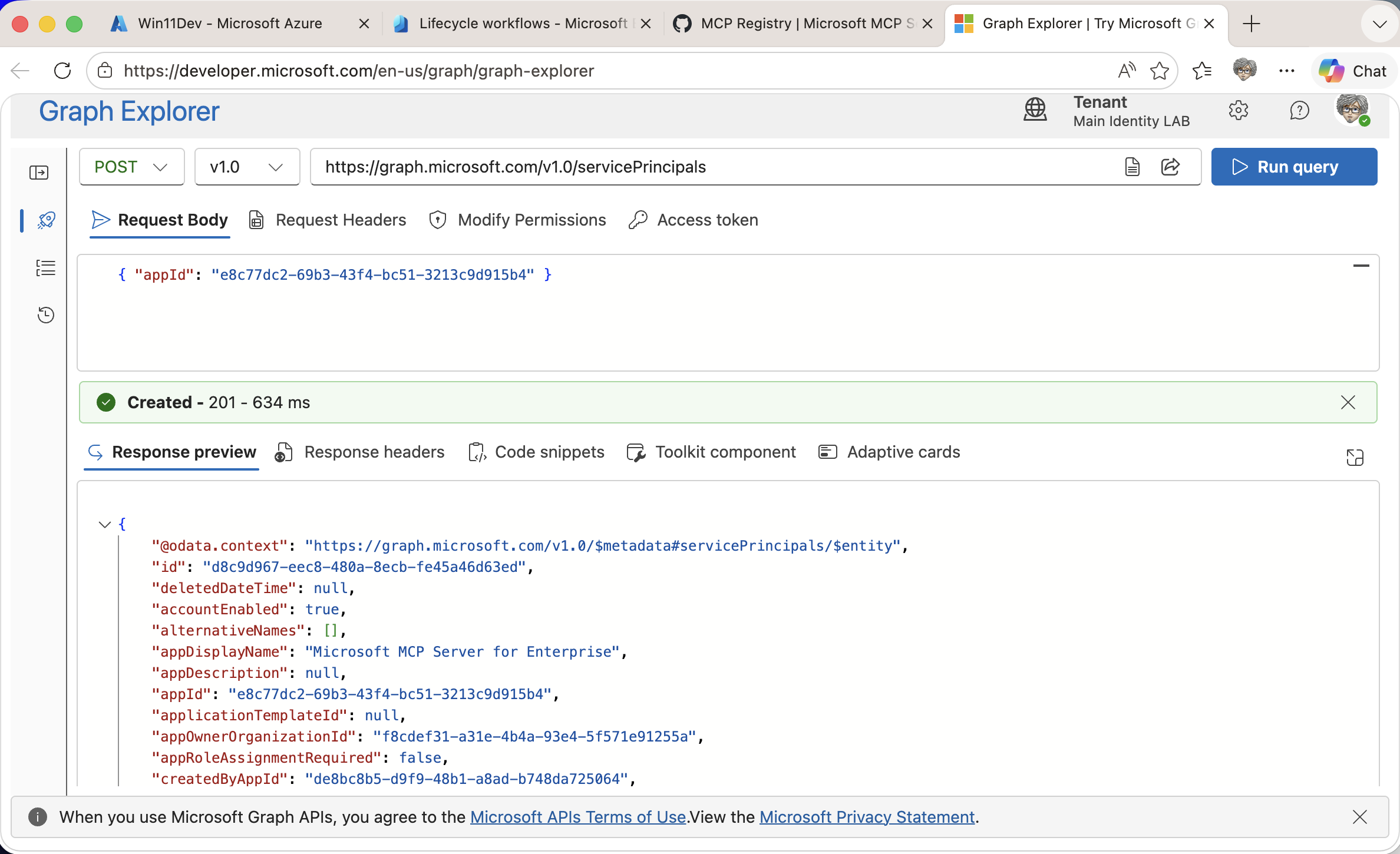
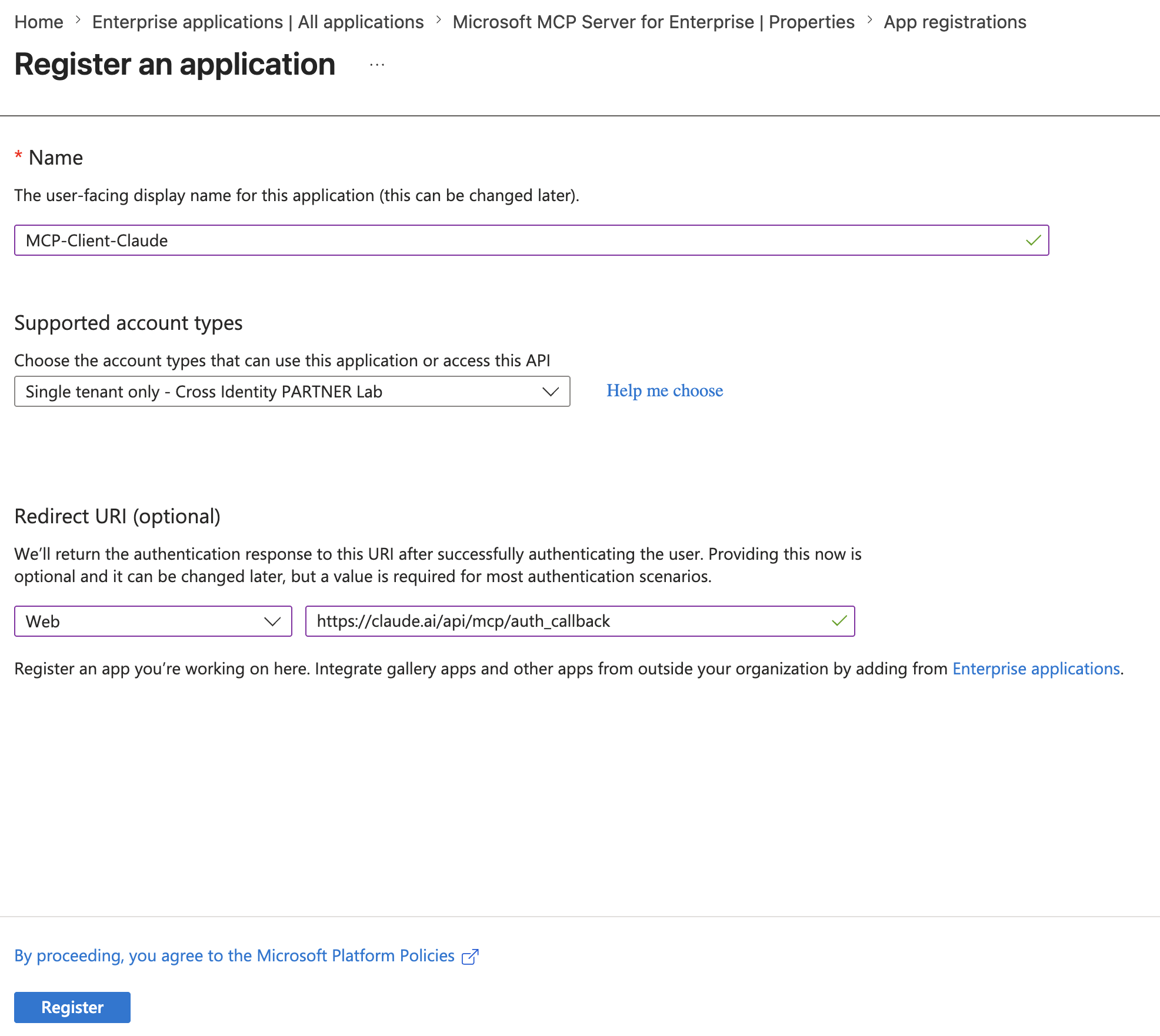
Next, we create the App Registration in the architecture diagram above, that’s the box on the right outlined with a red dashed border. It acts as the link between the Claude Desktop App and the Service Principal of the MCP Server we just set up.
Two things are particularly important during registration:
Redirect URI - This is the endpoint to which Microsoft sends the authorization code after successful authentication. In this case: https://claude.ai/api/mcp/auth_callback
Client Secret - Often viewed critically in practice, and for good reason: a secret is essentially an application password, with all the risks that come with it. For this integration, it is currently the only supported method. If you prefer to avoid secrets altogether, Part II covers an alternative, one that works without Anthropic and without a secret.
The following screenshots walk through each step:
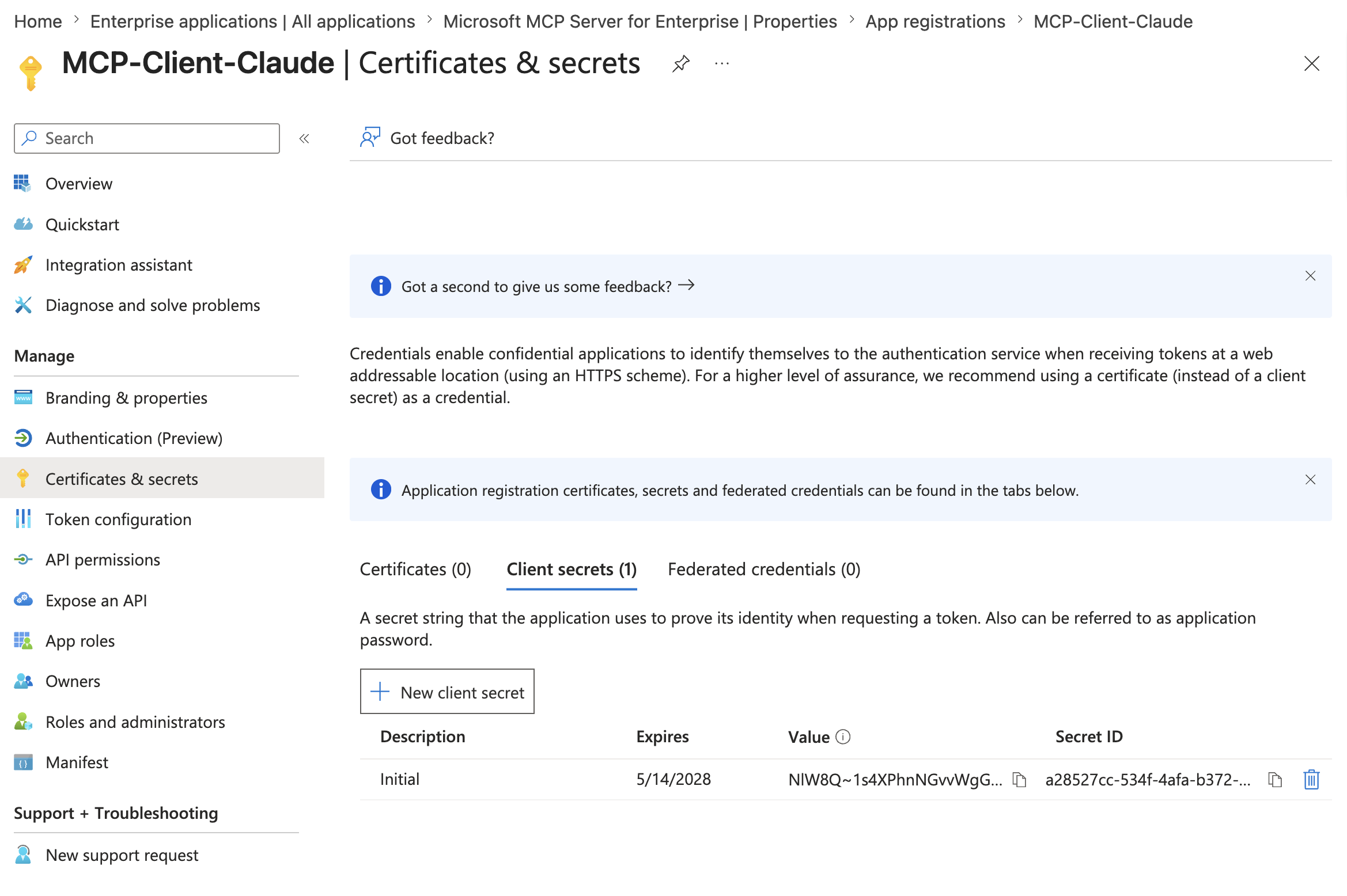
💡 Important: Copy the secret value now and store it somewhere safe, it will be needed shortly when setting up the Claude Connector, and will no longer be visible once you navigate away from this page.
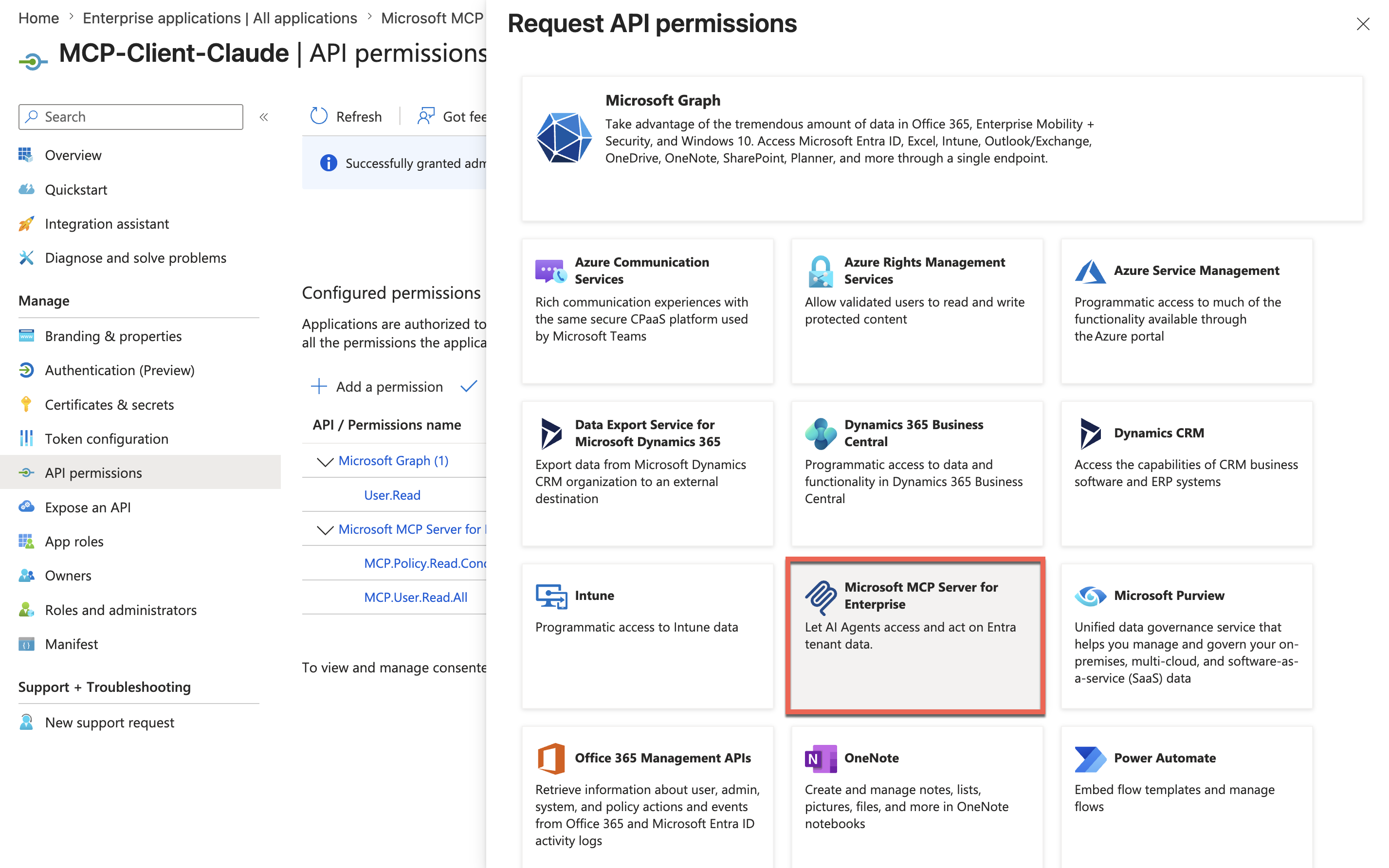
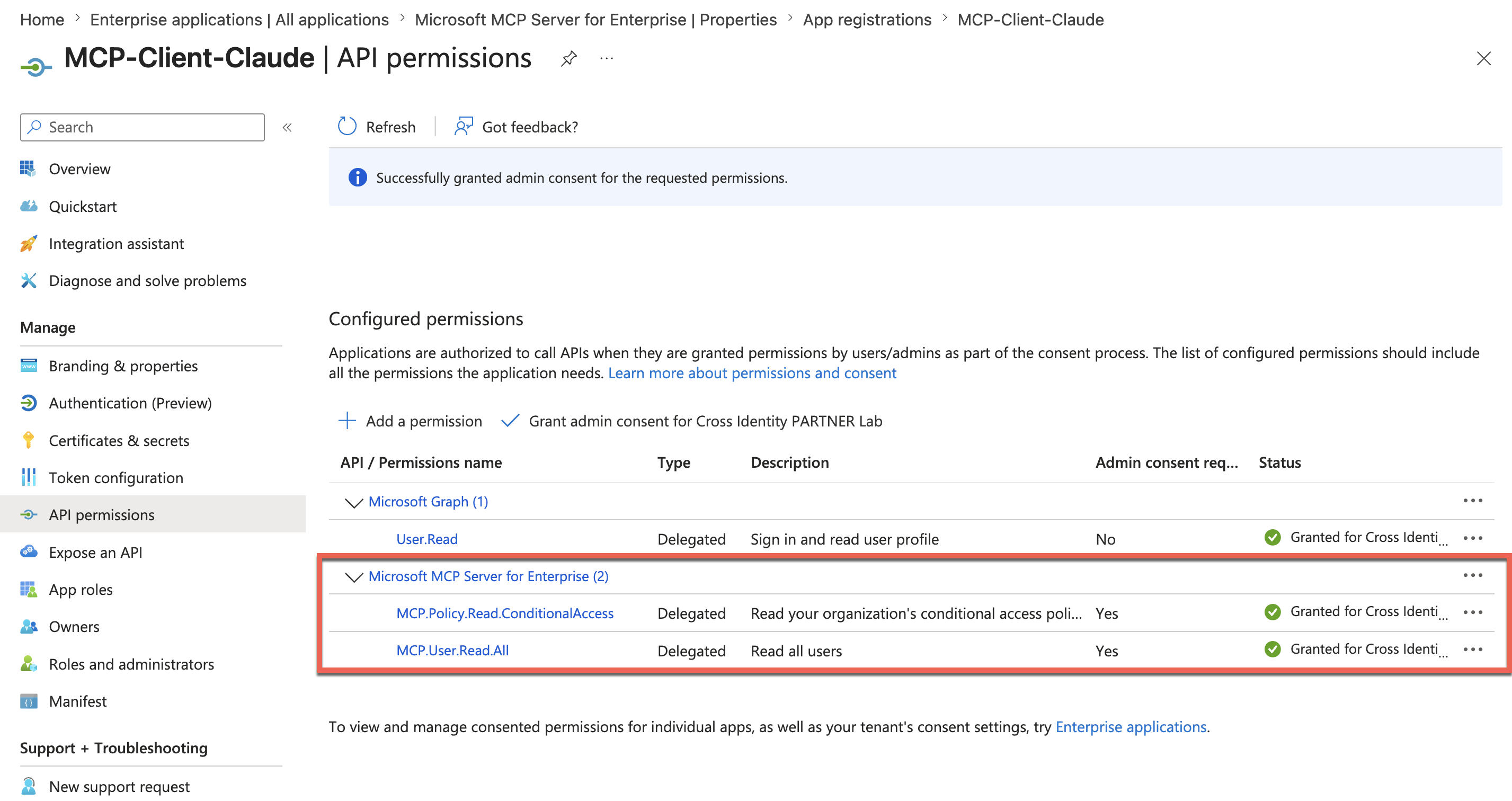
Next, we configure the API permissions. Depending on which data you want to query from your tenant, permissions can be assigned granularly. Since we’re querying Conditional Access Policies in this example, we grant the corresponding read permissions:
Add the connector in Claude Desktop App
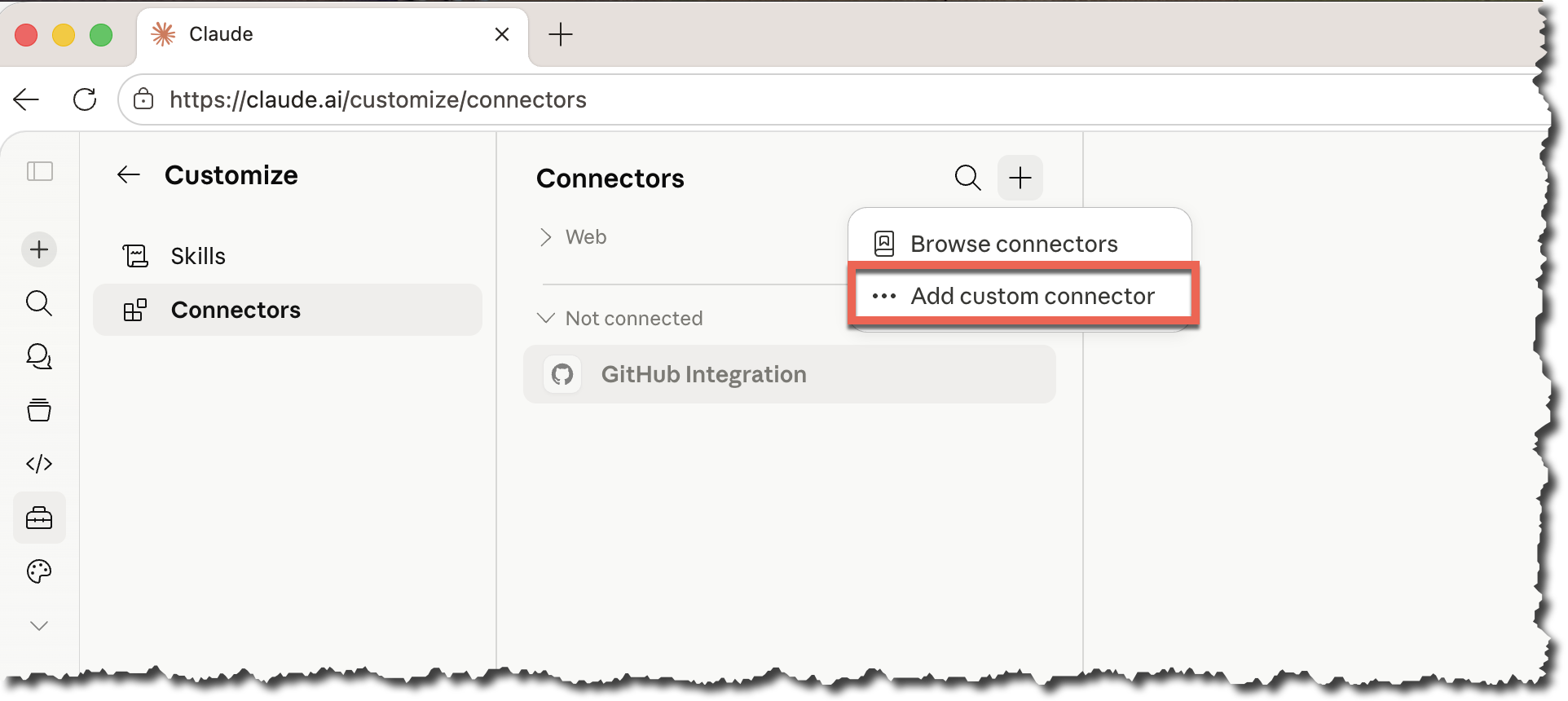
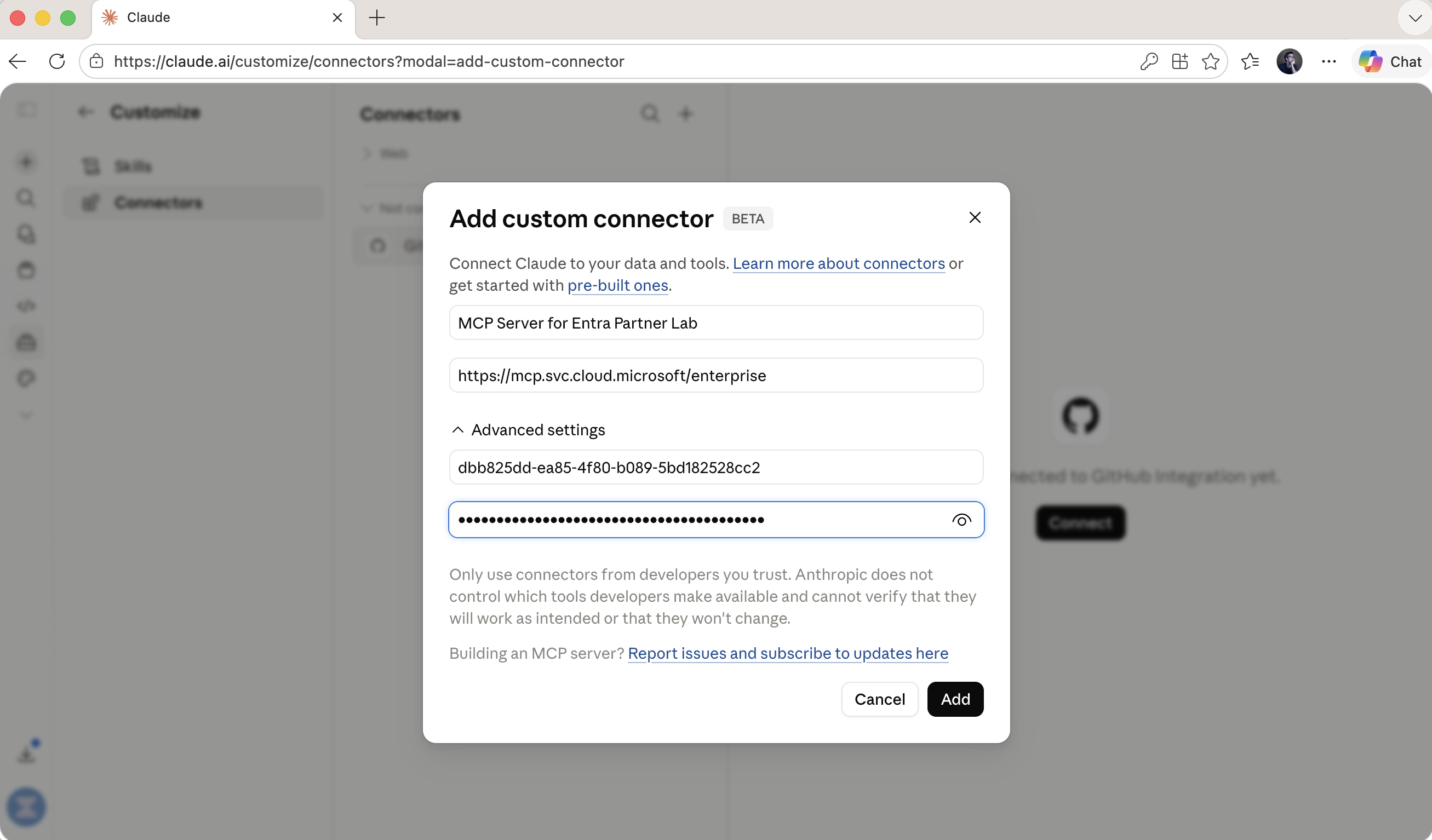
Next, we add the connector in the Claude Desktop App. For this, we need the Application (Client) ID and the secret we copied earlier.
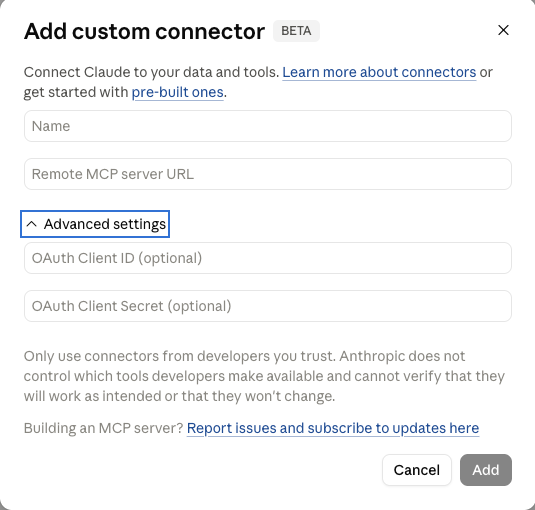
The following screenshots walk through the steps for setting up the connector in the Claude Desktop App:
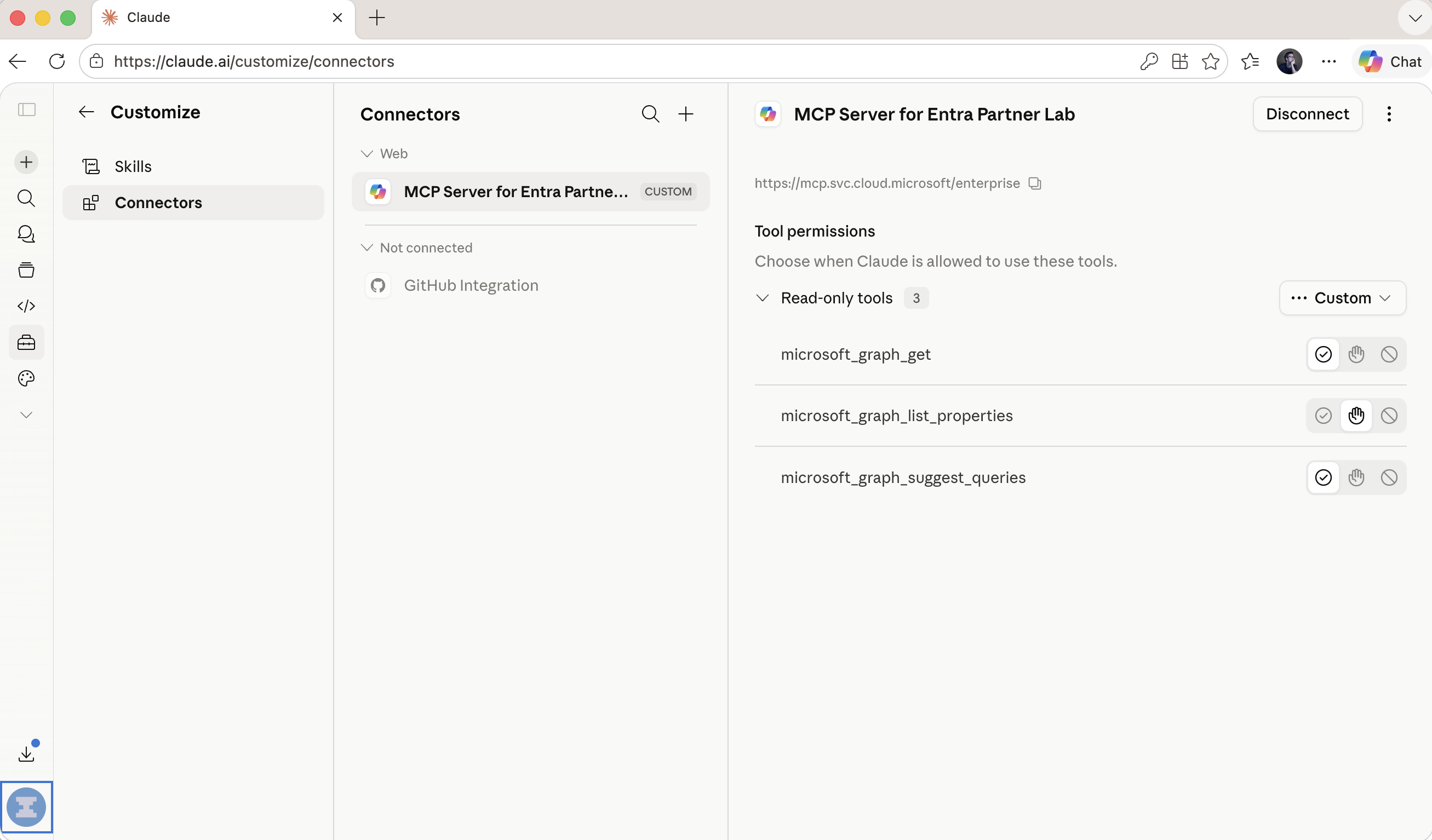
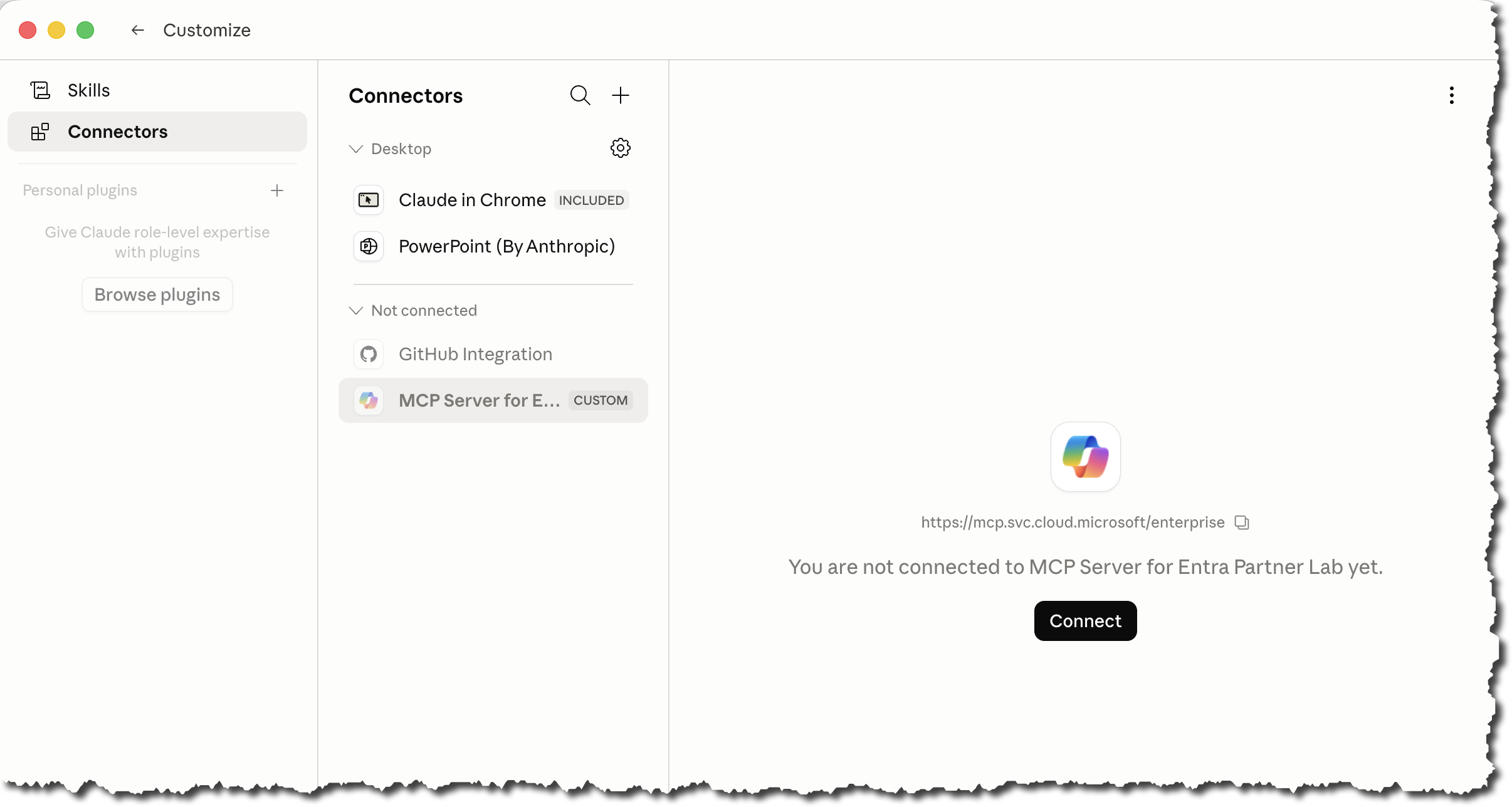
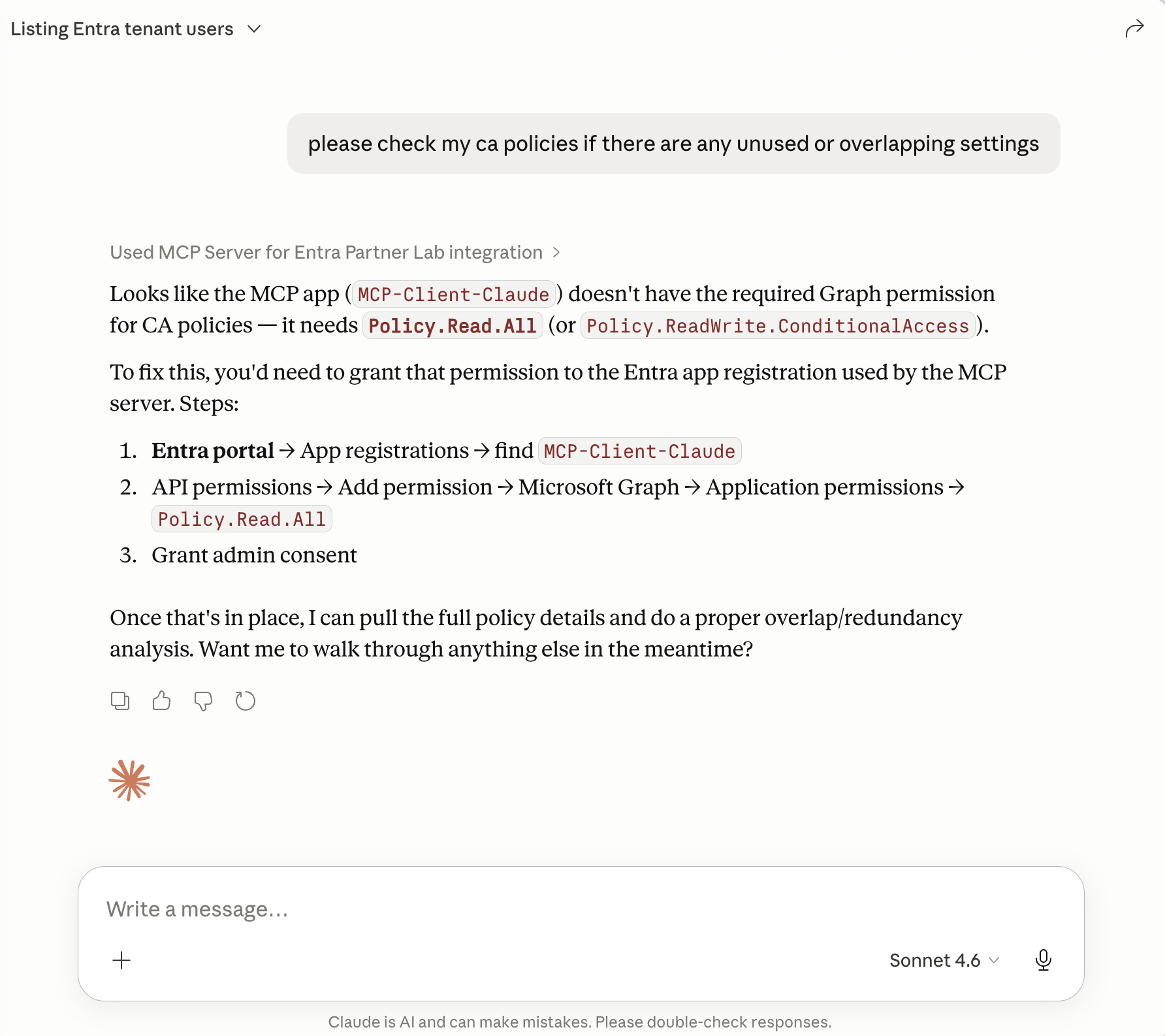
The following screenshot shows what happens when a prompt is submitted for an object type that the App Registration has not been granted permissions for. Handy: Claude immediately lists the missing permissions, so you know exactly what needs to be added.
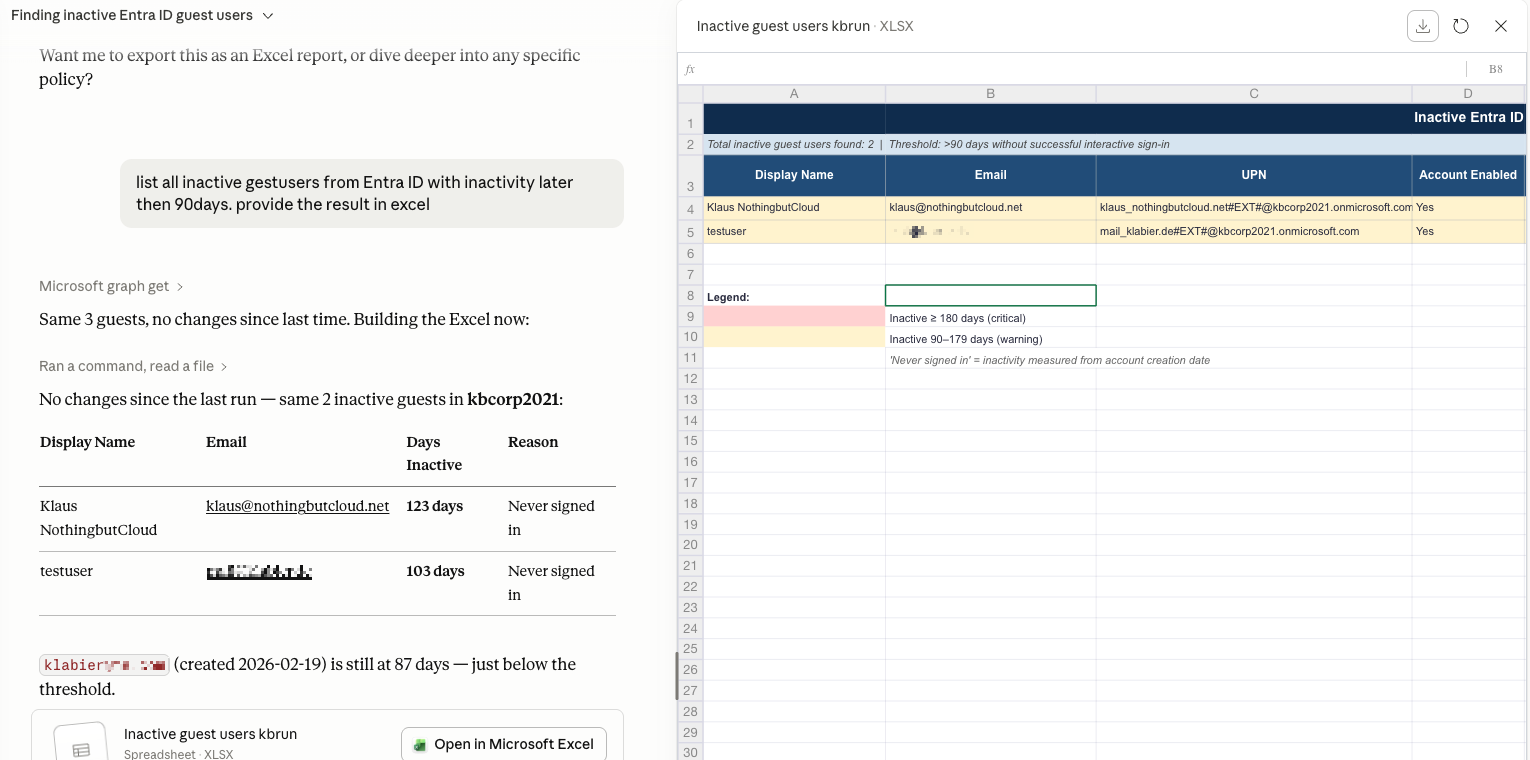
The results speak for themselves and as shown above, the setup is straightforward.
Conclusion
For a lab scenario, this setup delivers. Anyone looking to move towards production should keep a few things in mind: How is the secret rotated — and who is responsible for that? And last but not least: is processing tenant data via the Anthropic backend compatible with your organization’s data privacy requirements? If any of those questions remain unanswered for your scenario, Part II might be worth a look — where we explore whether a Microsoft-native approach can close those gaps.
Deutsche Version
Als ich diesen Artikel im Mai 2026 veröffentlicht habe, war für die Integration noch ein Client Secret erforderlich. Das ist inzwischen nicht mehr notwendig.
Mittlerweile habe ich die Integration mit einem Public Client und dem Authorization Code Flow mit PKCE erfolgreich getestet, ganz ohne Client Secret.
Wie diese Konfiguration funktioniert, beschreibe ich in einem separaten Blogbeitrag. Der ursprüngliche Artikel bleibt als Dokumentation des damaligen Setups erhalten.
Übersicht
KI in Entra ID ist gerade in aller Munde: Security Copilot, der CA Policy Optimization Agent, der Access Review Agent. Die Liste wächst stetig. Aber die Kostendiskussion rund um SKU-basierte KI in Entra ID ist nach wie vor ein echtes Thema.
Vor einiger Zeit habe ich mir den Microsoft MCP Server for Enterprise genauer angeschaut und wie ich meinen alltäglichen KI-Client damit verbinden kann, um meinen Tenant in natürlicher Sprache abzufragen. Mein erstes Fazit: Absolut beeindruckend! Mir fehlen die Worte. Sowohl was die Einfachheit des Setups angeht, als auch die Qualität der Ergebnisse.
Schaut euch dieses Ergebnis an. Nicht schlecht, oder?
Abbildung oben: Ergebnis einer Abfrge nach dem Zustand meiner Conditional Access Richtlinien
Grundlegende Überlegungen
Es gibt einige Artikel zum Setup von Claude mit dem MCP Server for Enterprise. Trotzdem habe ich mich entschieden meine Erkenntnisse hier zu dokumentieren, da es hier und dort Aspekte gibt, die nicht offenkundig sind, die ich aber als wichtig erachte.
Dies ist der erste von zwei Blogbeiträgen. Dieser Teil konzentriert sich auf die Claude-Integration mit Entra ID. Einschränkungen und Herausforderungen werden weiter unten behandelt. Im zweiten Teil gehe ich auf die Copilot-Implementierung als KI-Client innerhalb des Microsoft-Ökosystems ein, zusammen mit meinen Eindrücken und Erfahrungen.
Bevor wir loslegen, ein paar Dinge vorab, die es zu wissen gibt:
- Der MCP Server kommuniziert über die Microsoft Graph API, die grundsätzlich auch Schreiboperationen unterstützt.
- Die aktuelle Version des MCP Servers unterstützt jedoch ausschließlich Leseoperationen, was für Analyseszenarien vollkommen ausreichend ist.
- Der MCP Server for Enterprise befindet sich aktuell in der Public Preview.
- Es fallen keine zusätzlichen Lizenzkosten an.
- Dieses Setup funktioniert gut für den Lab-Einsatz. Für ein Team mit mehreren Administratoren wird es komplexer: Beispielsweise benötigt jeder Admin das Secret für seine eigene Konfiguration.
Wir bleiben aber erstmal bei Claude. Das folgende Diagramm zeigt die Komponenten, mit denen wir in diesem Artikel konfrontiert werden.
Das folgende Diagramm zeigt jeden Schritt, vom Eingeben des Prompts bis zum Erhalt einer Antwort in natürlicher Sprache:
- Der Benutzer formuliert einen Prompt, zum Beispiel: „Liste alle Benutzer auf, die sich seit mehr als 90 Tagen nicht mehr angemeldet haben”
- Claude erkennt die Absicht und leitet die Anfrage über das Anthropic-Backend an den MCP Server for Enterprise weiter.
- Die Authentifizierung erfolgt über die App-Registrierung in Entra ID.
- Entra ID überprüft Identität und Berechtigungen, wie wenn die Graph API direkt aufgerufen würde.
- Der MCP Server übersetzt die Anfrage in den entsprechenden Microsoft Graph API-Aufruf, ruft die Daten aus dem Tenant ab und gibt sie an Claude zurück.
- Claude antwortet! Nicht mit rohem JSON, sondern in verständlicher, lesbarer Sprache, direkt im Chat.
⚠️ Datenschutz Beim Einsatz von Claude als MCP-Client verlassen die Tenant-Daten die Microsoft-Infrastruktur und werden über das Anthropic-Backend verarbeitet. Vor dem Einsatz in der Produktion sollte geprüft werden, ob dies mit den Datenschutzrichtlinien der Organisation vereinbar ist, unabhängig davon, welcher regulatorische Rahmen gilt. Das gilt ebenso für jeden anderen externen KI-Client. Für Szenarien, in denen Tenant-Daten die Microsoft-Infrastruktur nicht verlassen dürfen, könnten Microsoft-native Komponenten wie Copilot eine geeignete Option sein, das werden wir in Teil II der Serie anschauen.
Einrichten der App Registration
Wenn der MCP Server for Enterprise noch nicht im Tenant vorhanden ist, muss er zunächst eingerichtet werden. Dafür gibt es verschiedene Möglichkeiten, zum Beispiel über die PowerShell:
… oder direkt im Graph Explorer
Als nächstes erstellen wir die App-Registrierung. Im Architekturdiagramm oben ist das die Box auf der rechten Seite, die mit einem roten gestrichelten Rahmen markiert ist. Sie dient als Verbindung zwischen der Claude Desktop App und dem Service Principal des MCP Servers, den wir gerade eingerichtet haben.
Zwei Dinge sind bei der Registrierung besonders wichtig:
Redirect URI - Dies ist der Endpunkt, an den Microsoft den Autorisierungscode nach erfolgreicher Authentifizierung sendet. In diesem Fall: https://claude.ai/api/mcp/auth_callback
Client Secret - In der Praxis wird dies oft kritisch gesehen, und das zu Recht: Ein Secret ist im Wesentlichen ein Anwendungspasswort, mit allen Risiken, die damit verbunden sind. Für die Integration mit Claude ist es jedoch derzeit die einzige unterstützte Methode.
Die folgenden Abbildungen zeigen uns die notwendigen Schritte für die Einrichung
💡 Wichtig: Kopiere den Secret-Wert jetzt und bewahre ihn an einem sicheren Ort auf. Er wird gleich beim Einrichten des Claude Connectors benötigt und ist nicht mehr sichtbar, sobald du diese Seite verlässt.
Als nächstes konfigurieren wir die API-Berechtigungen. Je nachdem, welche Daten aus dem Tenant abgefragt werden sollen, können die Berechtigungen granular vergeben werden. Da wir in diesem Beispiel Conditional Access Policies abfragen, erteilen wir die hierzu motwendigen Leseberechtigungen:
Connector in der Claude Desktop App hinzufügen
Hierzu benötigen wir die Application (Client) ID und das Secret, das wir zuvor kopiert haben.
[](/MyPics/2026-05-02-MCP_ClientReg_0.png{:target=”_blank”}
Die folgenden Screenshots zeigen die einzelnen Schritte zum Einrichten des Connectors in der Claude Desktop App:
Die folgende Hardcopy zeigt, was passiert, wenn ein Prompt für einen Objekttyp abgesetzt wird, für den die App-Registrierung keine Berechtigungen erteilt wurden. Praktisch: Claude listet sofort die fehlenden Berechtigungen auf, sodass man genau weiß, was noch hinzugefügt werden muss.
Die Ergebnisse sprechen für sich, und wie oben gezeigt, ist das Setup unkompliziert.
Zusammenfassung
Für ein Lab-Szenario liefert dieses Setup überzeugende Ergebnisse. Wer den Schritt in Richtung Produktion plant, sollte einige Dinge im Blick behalten: Wie wird das Secret rotiert, und wer ist dafür verantwortlich? Und last but not least: Ist die Verarbeitung von Tenant-Daten über das Anthropic-Backend mit den Datenschutzanforderungen der Organisation vereinbar? Wer auf eine oder mehrere dieser Fragen noch keine Antwort hat, sollte einen Blick in Teil II werfen, in dem wir untersuchen, ob ein Microsoft-nativer Ansatz diese Lücken schließen kann.
Cover image is downloaded from Magnific