Zero Trust in Entra ID: Monitoring Break-Glass Accounts and Other Sensitive Operations
Keep an eye to the most sensitive accounts in your Entra ID
- Monitoring in general
- Monitoring and dealing with critical user accounts
- Send logs to Log Analytics
- Automated alerts
- How the alert notification looks like
- Putting break-glass accounts into a group
This article was originally published in January 2021 as part of a five-part Zero Trust article series. Since then, many things have changed (both in strategy and technology) which led me to completely update this article in December 2025
Monitoring in general
There are organizations that outsource the monitoring of their systems. However, there are certain areas where you may not want to involve third parties when something happens, either because the information is sensitive or because the communication paths can be quite long. Regardless of that, the approach described here makes sense in any case. If a Global Administrator sets up alerting in the way outlined in this article, they, or their team, will be informed directly and without detours. This can be via mobile notifications or direct email alerts. A good example is changes to a Conditional Access policy, or, as discussed later in this article, sign-ins using a break-glass account. There are many possible use cases for this approach.
Monitoring and dealing with critical user accounts
Microsoft recommends using so-called break-glass accounts for emergency access. These accounts have maximum permissions and are excluded from security controls such as Conditional Access policies.
If something goes wrong with a policy or if there are issues with the connection to on-premises systems, for example when using Pass-through Authentication (PTA), these unaffected, cloud-only break-glass accounts can still be used to access the tenant.
Send logs to Log Analytics
First, a Log Analytics workspace is required to which Entra ID can send its logs. This is useful even without the break-glass account example, as sign-in and audit logs are only retained for a limited time in Entra ID itself: 30 days with an Entra ID P1/P2 license and only 7 days without one. A Log Analytics workspace can be created quickly via the Azure Portal. Once the workspace exists, it is added in Entra ID through the diagnostic settings. As a result, the log entries are sent to the Log Analytics workspace, where the retention period can be configured according to your requirements.
The following images show step by step how to configure Entra ID to send the required logs to Log Analytics.
Automated alerts
The alerts view of a Log Analytics workspace lists all alert rules that have been created over time. When creating a new alert rule, the essential components are the condition and the action group. Both can be created directly as part of the entire configuration.
When creating a new action group, it can include notifications, actions, or both. For a notification scenario like the one used in this example, defining a message configuration is sufficient. In this case, we configure both email and SMS as notification types within the action group, which is appropriate for alerting on sign-in activities involving one of our break-glass accounts. Keep in mind that action groups are very flexible and can be used in many other ways, such as triggering a webhook or starting an automation runbook.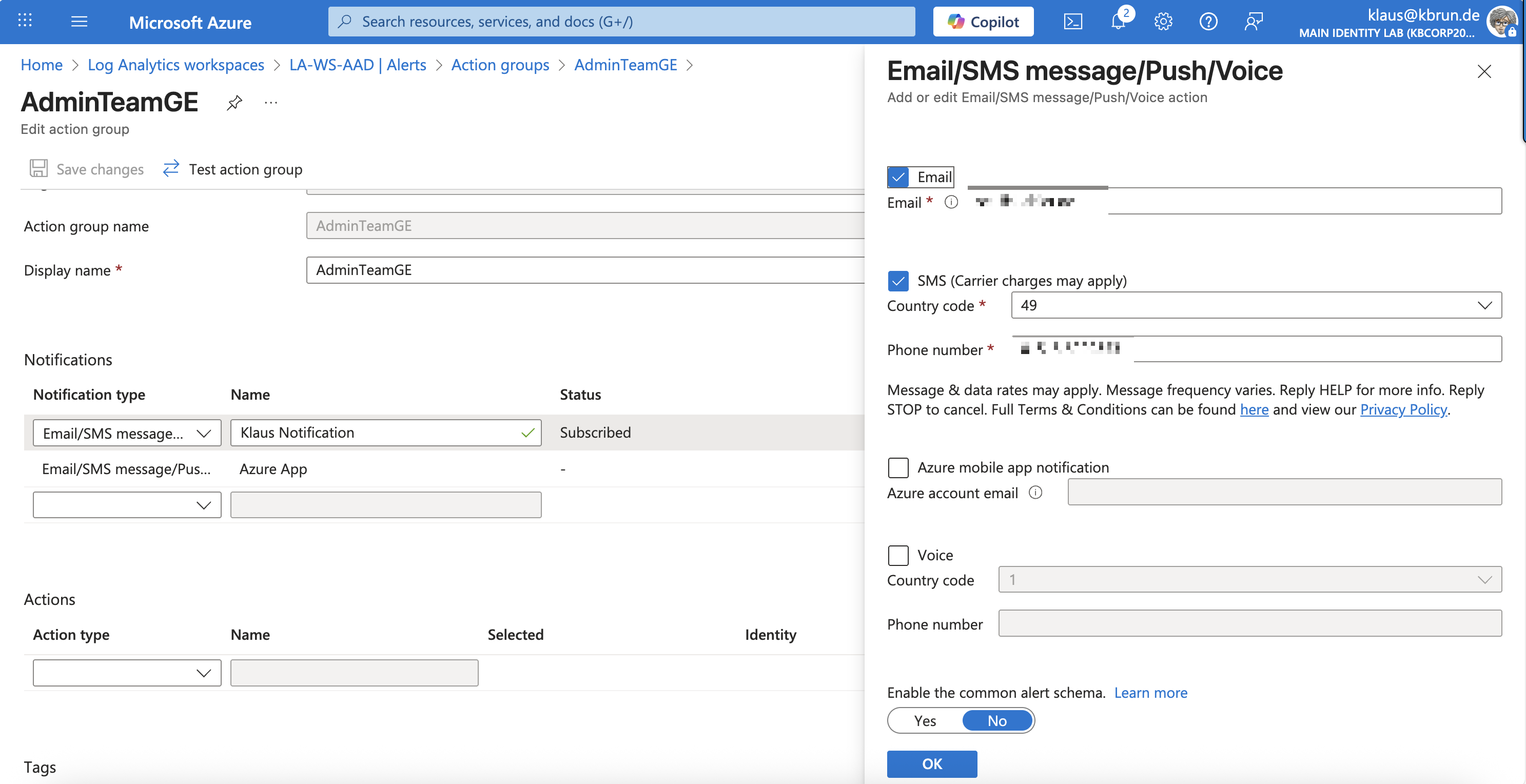
An action group is a central component and can be reused across multiple alert rules whenever admin teams need to be notified about alerts or warnings.
The second element that needs to be configured is the alert rule itself. In my demo lab tenant, I have several alert rules enabled. In addition to alerts for break-glass account sign-in activity, I also receive notifications when changes are made to my Conditional Access policies.
Within an alert rule, the condition is essentially based on a KQL query that can surface any data stored in the Log Analytics workspace. In our example, we query the Sign-in log, which must be selected as the data source.
Which log can be queried depends on the data sources connected to the Log Analytics workspace. For example, when querying changes to groups or Conditional Access policies, the Audit log must be used instead.
If you are unsure which operation or parameter to use in a KQL query, you can review the corresponding log entries directly in Entra ID to identify the relevant details.
Returning to our alert rule for detecting a sign-in using a break-glass account: the figure below shows the basic query statement as well as the KQL editor with the explorer view.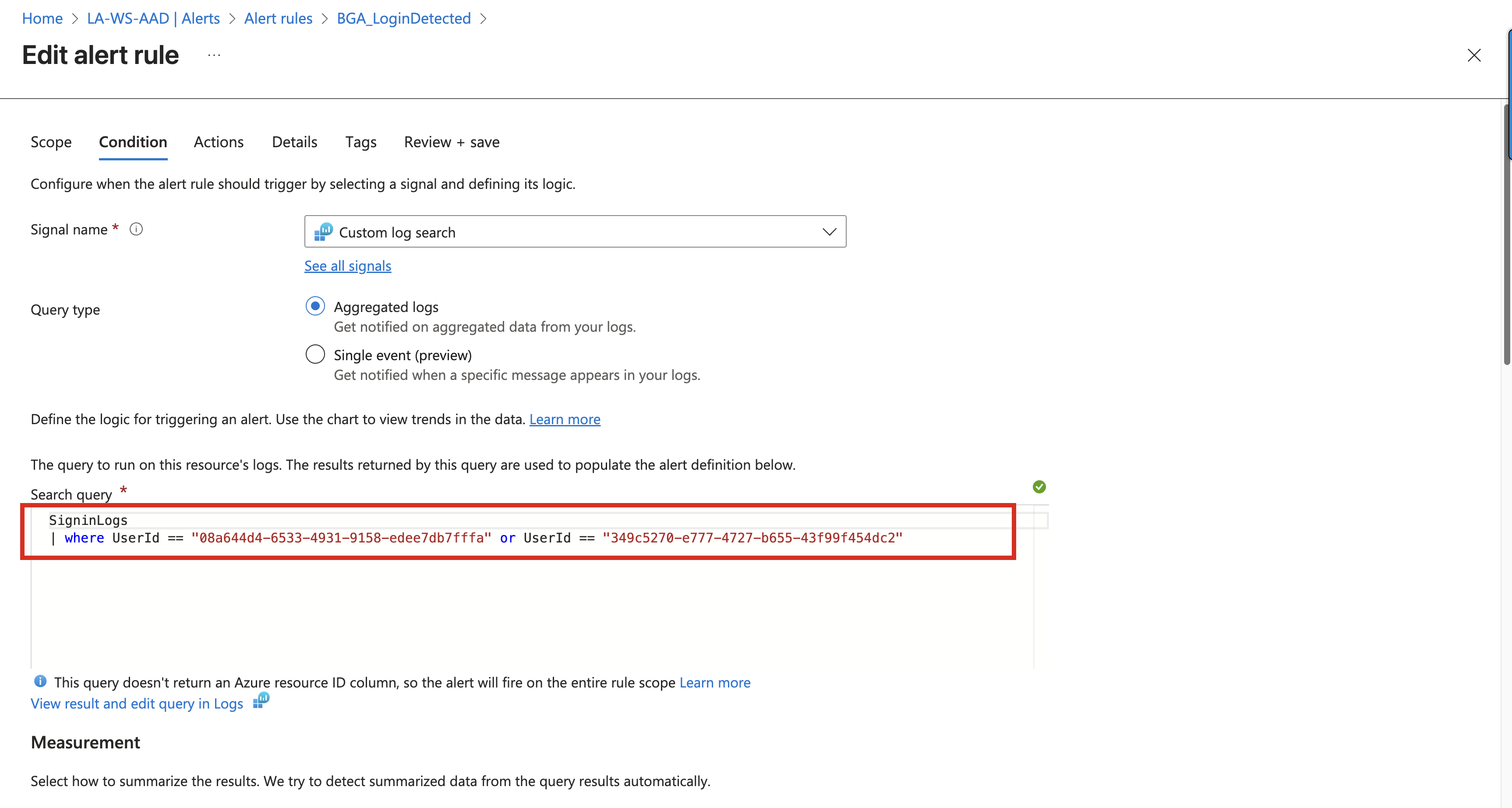
KQL queries can be very extensive. The example shown above is deliberately reduced to the essentials, and the figure highlights only the most important elements. The alert rule configuration itself offers many additional options. However, these are largely self-explanatory and therefore not covered in more detail here.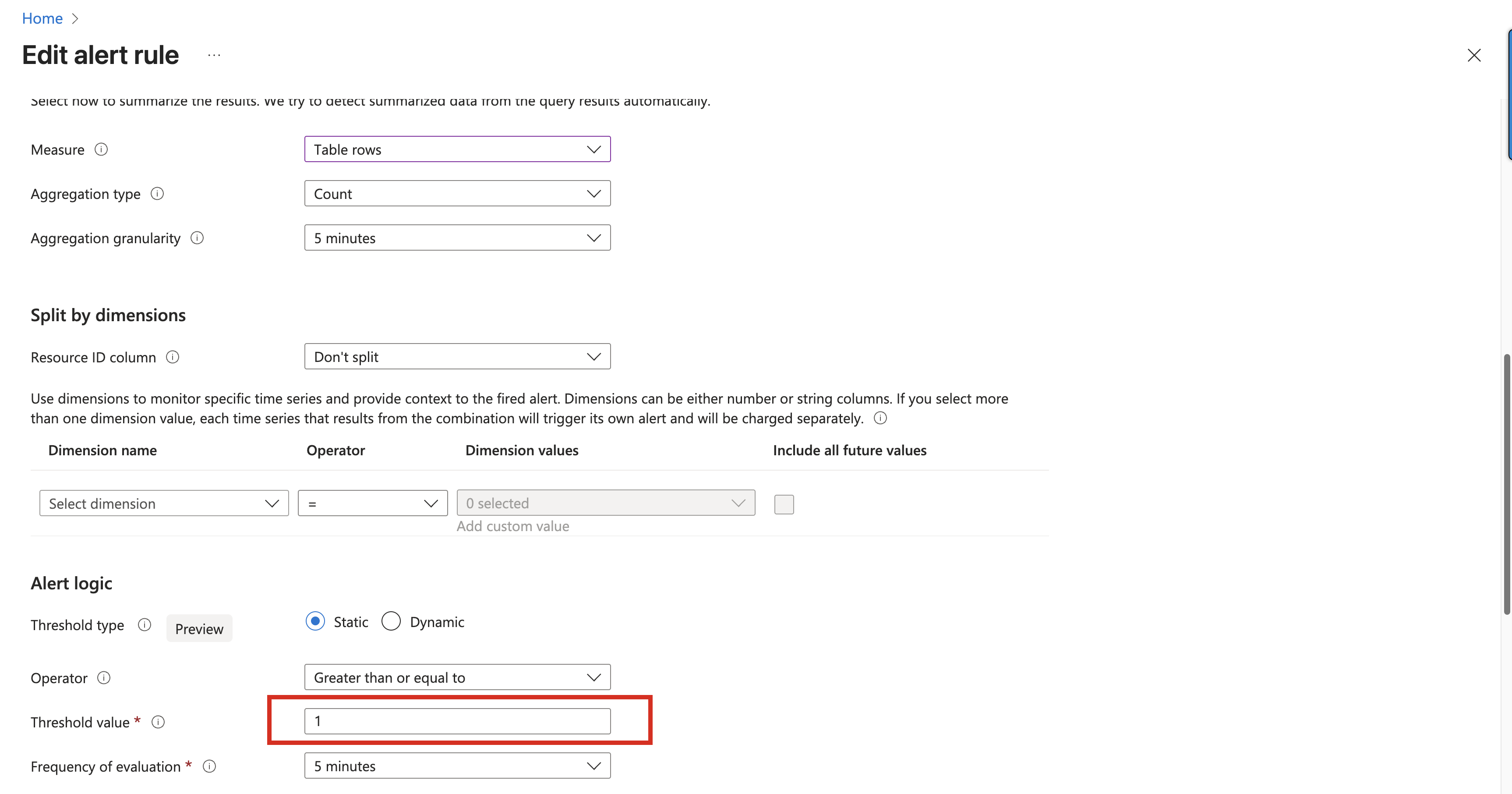
The KQL statement is used as the condition of the alert rule and therefore becomes part of its evaluation logic. A result greater than zero indicates that the KQL query returned a match — meaning that a change has occurred. As a result, the alert condition is met and the configured email and SMS notifications are triggered.
This is the basic principle behind alerting in Log Analytics.
For completeness, the KQL statement used to detect changes to Conditional Access policies is shown below.
If you want to copy paste them
SigninLogs
| where UserId == "Your BGA Object-ID" or UserId == "Another BGA Object-ID"
AuditLogs | where ActivityDisplayName == "Update policy"
| project ActivityDateTime, ActivityDisplayName, TargetResources[0].displayName, InitiatedBy.user.userPrincipalName
How the alert notification looks like
When an alert is triggered, for example via email, you receive a notification that includes a link to the corresponding Log Analytics alert. This link allows you to directly investigate what happened and review the relevant details.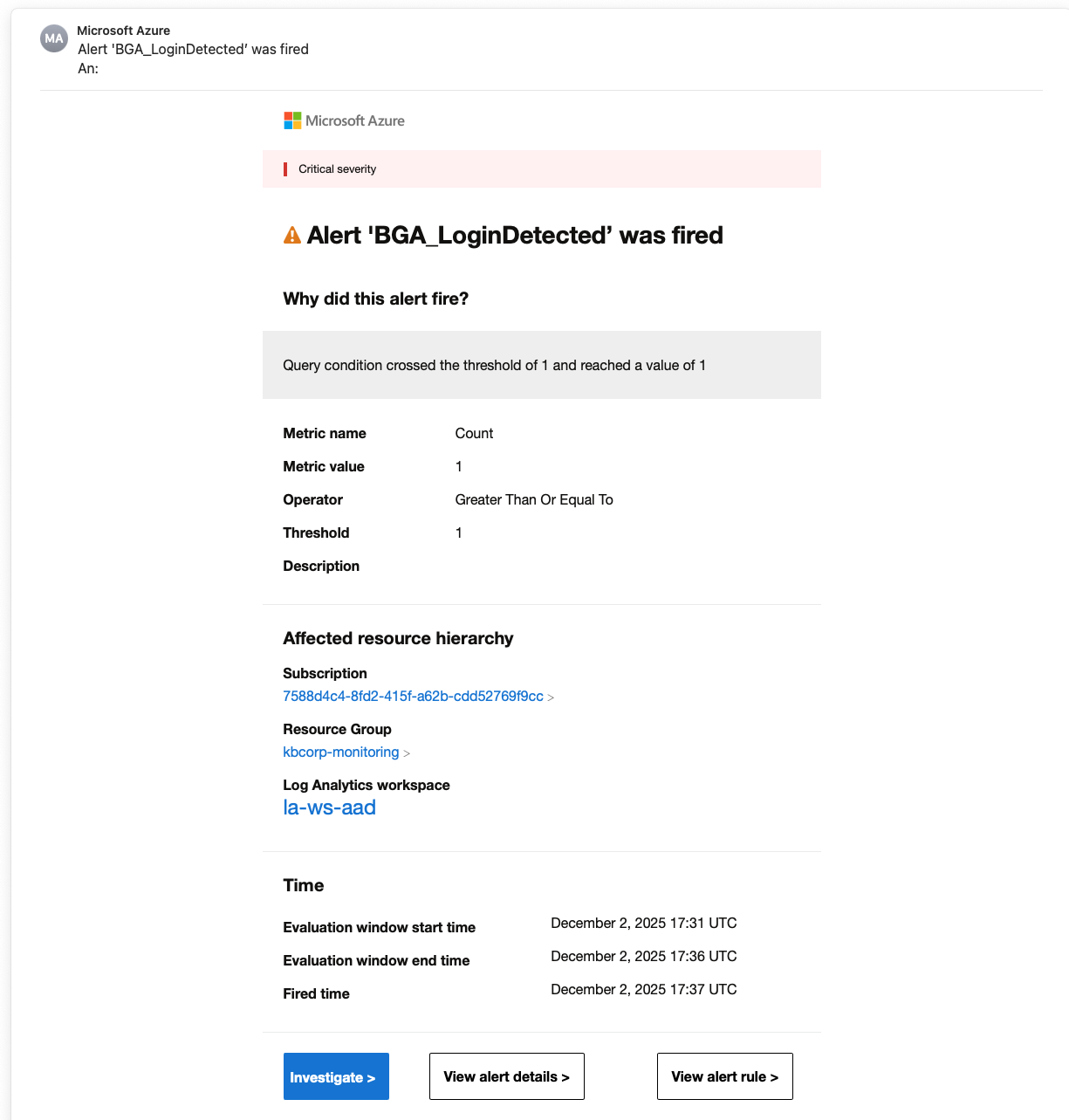
Putting break-glass accounts into a group
In some environments, I see all break-glass accounts being added to a single group to make exclusions in Conditional Access policies easier to manage. I strongly advise against this approach, as it introduces additional complexity that needs to be maintained and secured. Such a group would itself require protection, for example through PIM for Groups or access reviews, which largely defeats the purpose. Instead of opening up another backdoor that then needs to be governed, it is usually the better option to avoid break-glass groups altogether.
Cover image by Peggy und Marco Lachmann-Anke from Pixabay